
Get Your Music On iTunes

LMC Flashback Calender

February 2010
M T W T F S S
« Jan   Mar »
1234567
891011121314
15161718192021
22232425262728

How To Listen To A Shoutcast Stream With Winamp Or iTunes

   I’ve been doing some live online broadcasts of my live band lately using Shoutcast. Shoutcast is a technology that allows anyone to broadcast audio from their PC to the Internet. Shoutcast broadcasts in MP3 or AAC+ format and can be played by Winamp, iTunes or the somewhat unreliable mini-player at Shoutcast.com. Broadcasters using Shoutcast can have their station listed in the Shoutcast.com Radio Directory.

   I’ve had a lot of listeners complaining that the Shoutcast Mini Player has been crashing browsers and computers. So today I’m going to write a tutorial on how to listen to Shoutcast Radio streams using either Winamp or iTunes.   

   The first step is to download and install either iTunes or Winamp on your computer. If you have an Apple iPod, iPhone or iPad you will most likely already have iTunes installed on your machine and you can use it to listen to Shoutcast Radio streams. Click the links below to download your player of choice.

After downloading, simply run the downloaded file to install.

How to connect to a Shoutcast Radio stream using iTunes

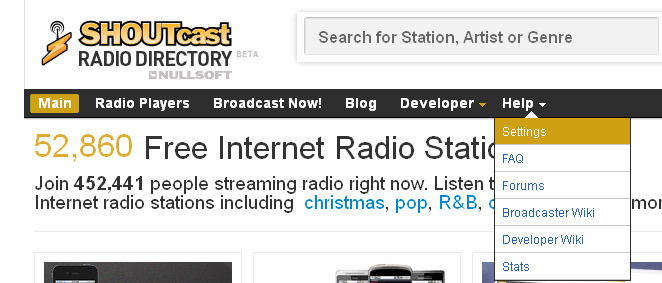
1.) Go to www.shoutcast.com and click on the link that says “Change Default Player Settings”.

Change Default Player Settings

Change Default Player Settings

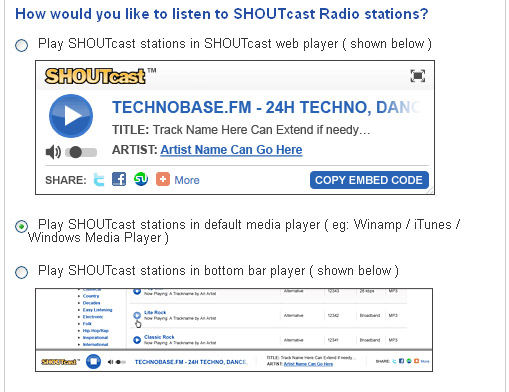
2.) Then select the button for “I want to listen using my own media player (Winamp, Windows Media, iTunes, etc)

3.) Click Save

4.) Go to www.shoutcast.com and type in the name of the station you’re looking for in the Search box. In this example we will be connecting to Bonne Nuit Live.
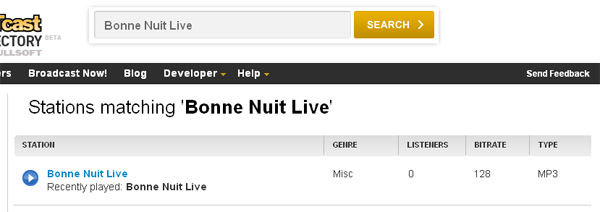
Search For Station

Search For Your Shoutcast Station

5.) When Shoutcast finds your station (Bonne Nuit Live) you want to Right-Click the button that says “Tune In” and select “Copy Shortcut”.

6.) Open iTunes and click on the “Advanced” tab, then select “Open Audio Stream”.

7.) Right click on “Open Audio Stream” box and paste the copied shortcut.

8.) Then select “OK” and you will now be listening to your Shoutcast stream in iTunes!

How To Connect To A Shoutcast Stream Using Winamp

1.) Start Winamp and click on the Browser tab.

1.) In the address bar type  www.shoutcast.com to go to Shoutcast.

2.) Click on the link that says “Change Default Player Settings”.

Change Default Player Settings

Chande Default Player Settings

3.) Then select the button for “I want to listen using my own media player (Winamp, Windows Media, iTunes, etc)

4.) Click Save

5.) On the Shoutcast page loaded in the Winamp browser, type the name of the station you want in the Search box.

Search For Station

Search For Your Shoutcast Station

6.) When Shoutcast finds your station, simply click “Tune In” to listen to your channel!

Related Posts

  1. Bonne Nuit To Play Live Online Concert Saturday March 3, 2010
  2. Broadcast A Live Online Concert
  3. Getting Your Music Heard Online
  4. Gig Report – Bonne Nuit Live Online Concert
  5. Gig Report – Bonne Nuit Live Online Concert March 6, 2010
  6. Make The Leap To HD Radio With The Microsoft Zune HD

Leave a Reply


You can use these HTML tags

<a href="" title=""> <abbr title=""> <acronym title=""> <b> <blockquote cite=""> <cite> <code> <del datetime=""> <em> <i> <q cite=""> <strike> <strong>